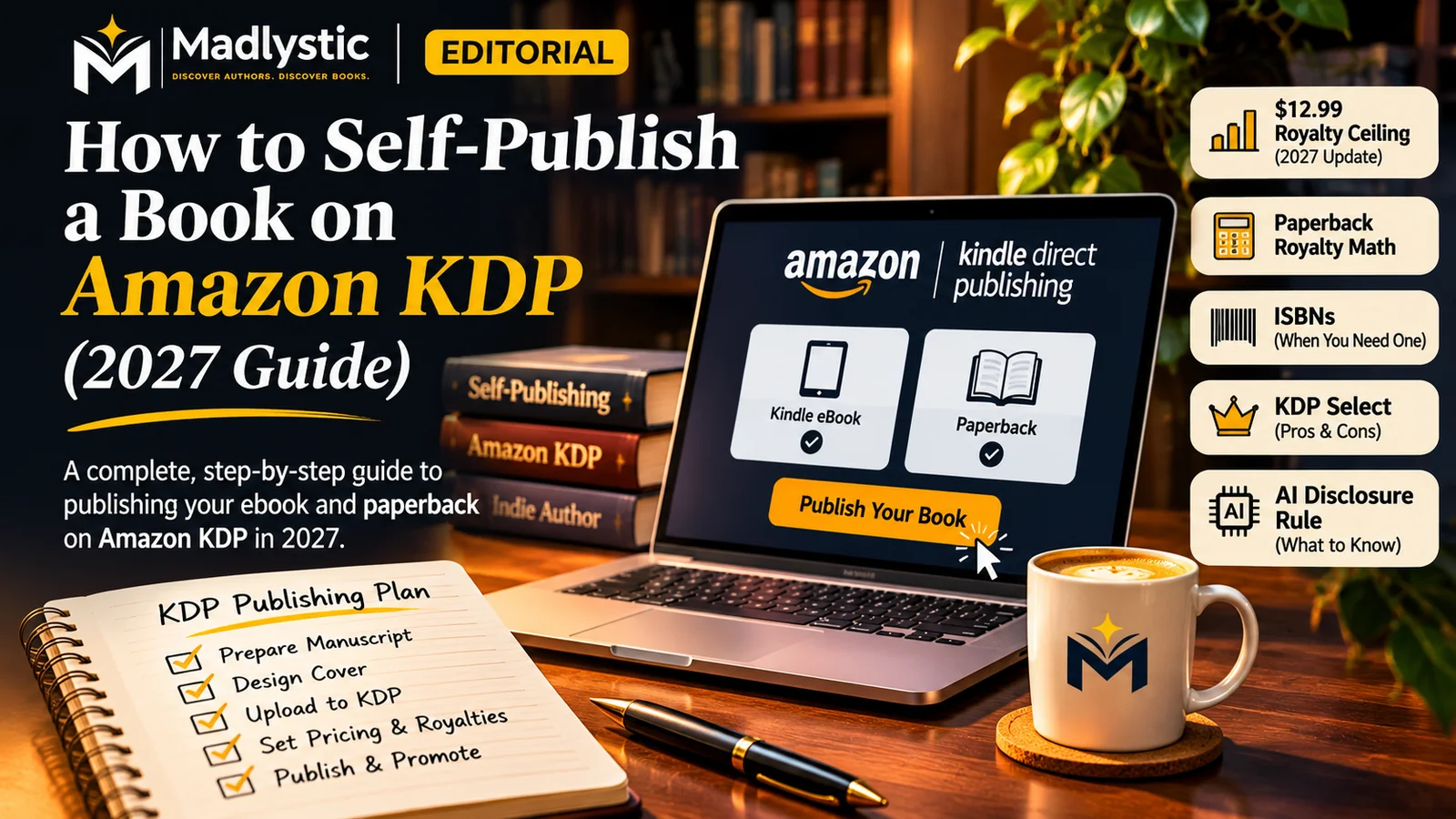
How to Self-Publish a Book on Amazon KDP (2027 Guide)
A complete, step-by-step guide to publishing your ebook and paperback on Amazon KDP in 2027, including the new $12.99 royalty ceiling, paperback royalty math, ISBNs, KDP Select, and the AI disclosure rule.
Published November 15, 2026 · 30 views
12 min read
Quote of the Day
“Start writing, no matter what. The water does not flow until the faucet is turned on.” — Louis L’Amour
Self-publishing on Amazon is free, open to anyone, and can take a finished manuscript to a live Kindle listing in a few days. But the rules changed in 2025 and again in 2026, and a lot of guides online are now out of date. This step-by-step guide covers everything you need to publish an ebook and a paperback on Amazon Kindle Direct Publishing (KDP) heading into 2027.
Royalty rates and rules in this guide are current as of November 2026. We’ll update it if KDP changes them.
Before you start: get the book ready
Amazon will publish almost anything you upload. Readers won’t forgive what Amazon allows, so prepare properly first.
Edit properly. Most books need more than one kind of editing, from structural feedback to a final proofread. See our guide to the four types of book editing.
Get a professional cover. Your cover is your most important marketing tool, especially as a thumbnail in search results. KDP’s free Cover Creator works for testing, but genre-appropriate professional design usually sells better.
Write your description and research keywords. Know your genre, your comparable titles, and what readers in your genre search for.
Step 1: Create your KDP account
Go to kdp.amazon.com and sign in with an Amazon account, or create a new one. Before you can publish, you’ll need to complete:
Your tax interview, which determines how your royalties are taxed in your country.
Your payment details, so Amazon can pay you by bank transfer.
Step 2: Add your ebook details
Click Create, then Kindle eBook, and fill in:
Title and subtitle: these appear exactly as written on your listing.
Series information, if the book is part of a series.
Author name: use the same name everywhere, including any pen name.
Description: your sales pitch. Hook readers in the first two lines.
Keywords: KDP gives you seven keyword boxes. Use phrases readers actually search, like “enemies to lovers fantasy,” not single generic words.
Categories: choose the most specific categories that genuinely fit your book.
Step 3: Answer the AI disclosure question
KDP now requires every author to say whether the book contains AI-generated content (text, images, or translations created by an AI tool) as opposed to AI-assisted content (you wrote it and used AI to help edit or brainstorm). Answer honestly. Amazon reviews undisclosed AI content, and KDP limits accounts to three new titles per day to discourage mass-produced books. Readers are also getting better at spotting it, as we explain in how to tell if a book was written by AI.
Step 4: Upload your manuscript and cover
Manuscript: upload an EPUB or DOCX file. Amazon’s free Kindle Create tool can format a clean ebook for you.
Cover: upload your cover image, or use Cover Creator.
Preview: always check the Kindle Previewer for formatting errors, broken chapters, or missing images before publishing.
You don’t need an ISBN for a Kindle ebook. Amazon assigns its own identifier, the ASIN. For when you do need one, see do you actually need an ISBN to self-publish?
Step 5: Choose your ebook royalty and price
KDP offers two ebook royalty options:

The big 2026 change: on July 7, 2026, Amazon raised the top of the 70% band from $9.99 to $12.99, the first change since KDP launched in 2007. Price above $12.99 and your royalty drops to 35%.
Example: a 1 MB ebook priced at $4.99 earns roughly 70% × ($4.99 − $0.15), about $3.39 per sale.
Step 6: Decide on KDP Select (Kindle Unlimited)
KDP Select is optional. If you enroll, your ebook must be exclusive to Amazon for 90-day terms, meaning you can’t sell the ebook on other stores during that time. In return:
Your book appears in Kindle Unlimited, and you’re paid for every page subscribers read.
You get promotional tools, such as up to five free-promotion days per 90-day term.
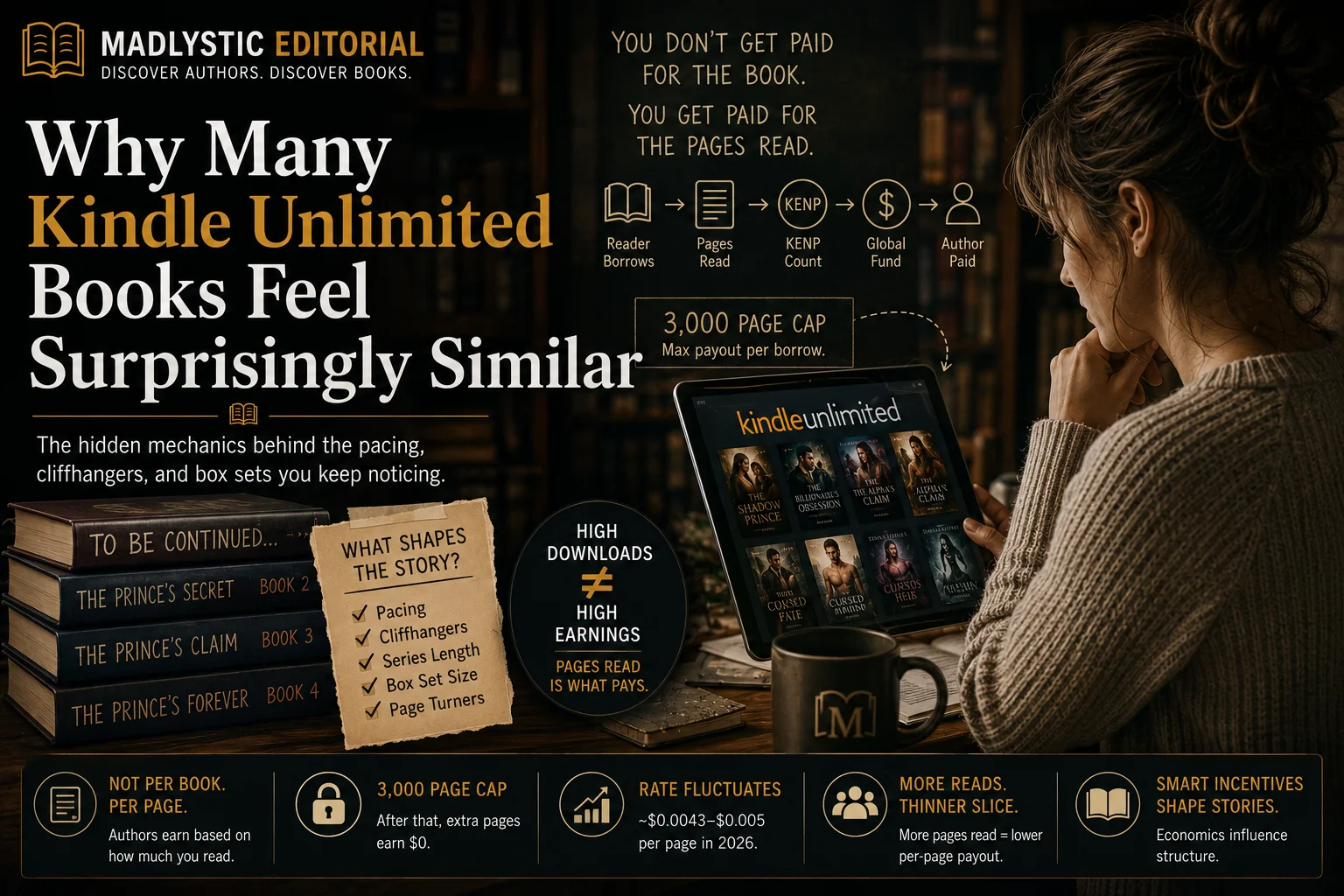
KDP Select can work well for genres that are popular with Kindle Unlimited readers, like romance, fantasy, and thrillers, but exclusivity is a real trade-off. Learn how page-read payments shape books in why many Kindle Unlimited books feel surprisingly similar.
Step 7: Publish
Click Publish your Kindle eBook. KDP reviews every book, which usually takes up to 72 hours, and then your book goes live on Amazon.
Step 8: Add a paperback
From your bookshelf, choose Create paperback for the same title. The steps are similar, with a few extras:
ISBN: use KDP’s free ISBN, or your own if you bought one.
Print options: trim size, paper color, and black-and-white or color interior.
Files: upload a print-ready PDF interior and a full wraparound cover with front, spine, and back.
Order a proof copy before publishing, so you can check the physical book.
Step 9: Price your paperback correctly
Paperback royalties changed in June 2025:
List price (Amazon.com)Royalty$9.99 and above60% of list price, minus printing cost$9.98 and below50% of list price, minus printing costExpanded Distribution (other stores)40% of list price, minus printing cost
For black-and-white paperbacks on Amazon.com, printing costs $2.30 for books of 24 to 108 pages, and $1.00 plus $0.012 per page for 110 to 828 pages.
Example: a 200-page paperback costs $3.40 to print. At $14.99, you earn (60% × $14.99) − $3.40, about $5.59 per sale. At $9.98, you’d earn only about $1.59. That $0.01 price difference at the $9.99 threshold matters a lot.
Always confirm your numbers with KDP’s built-in royalty calculator before publishing.
Step 10: After you publish
Publishing is the starting line. A book nobody finds is a book nobody reads, and this is where most self-published books struggle, as we explain in why most self-published books fail.
Build early reviews through ARC readers and your network.
Keep your metadata consistent across Amazon, Goodreads, and your own pages.
Create your free author profile on Madlystic. Import your book in minutes with its ISBN or ASIN, add your links in one place, and let readers follow your next work in progress.
Conclusion
Amazon KDP gives every writer the same open door: no gatekeepers, no upfront cost, and a global store within days. The authors who succeed treat publishing as more than clicking a button. They edit properly, price carefully around the royalty thresholds, make honest choices about exclusivity and AI disclosure, and plan how readers will find the book before launch day. Get those things right, and the door Amazon opens leads somewhere.
Frequently Asked Questions
Is it free to publish on Amazon KDP?
Yes. Creating an account and publishing is free. Amazon takes its share from each sale through the royalty split, and for paperbacks, printing costs are deducted from your royalty.
How long does it take to publish on KDP?
After you submit, KDP’s review usually takes up to 72 hours before your book goes live.
How much does Amazon pay authors for Kindle ebooks?
Either 70% (for ebooks priced between $2.99 and $12.99 on Amazon.com, minus a small delivery fee) or 35% (outside that range).
Do I need an ISBN for a Kindle ebook?
No. Amazon assigns an ASIN to Kindle ebooks. For paperbacks, you can use KDP’s free ISBN or buy your own.
Can I publish on other stores if I join KDP Select?
Your ebook must be exclusive to Amazon during each 90-day KDP Select term. Your paperback isn’t affected and can be sold elsewhere.
Do I have to disclose AI use on KDP?
Yes. KDP requires authors to disclose AI-generated text, images, or translations. AI-assisted editing or brainstorming is treated differently from AI-generated content.
Share this article
Share this article with readers who'll want to read it.
You may also like

Do You Actually Need an ISBN to Self-Publish?
July 29, 2026
Why Many Kindle Unlimited Books Feel Surprisingly Similar
July 22, 2026
How to Tell If a Book on Amazon Was Written by AI (Before You Buy It)
July 21, 2026
Traditional Publishing vs. Self-Publishing: Which Is Right for You?
November 24, 2026